No Phantom Wallet
Let's get you set up.
New to crypto? No problem — about 10 minutes and you'll be ready to talk to me for real.
While setting up your wallet, for your safety please don't use your browser's back arrow — you'll see a button to tap below when you're finished.
I have been in crypto since 2017 and I know wallets can feel different and a bit scary the first time. That's why I built this page. Follow along and it's a breeze — just read Step 2 carefully, that part matters.
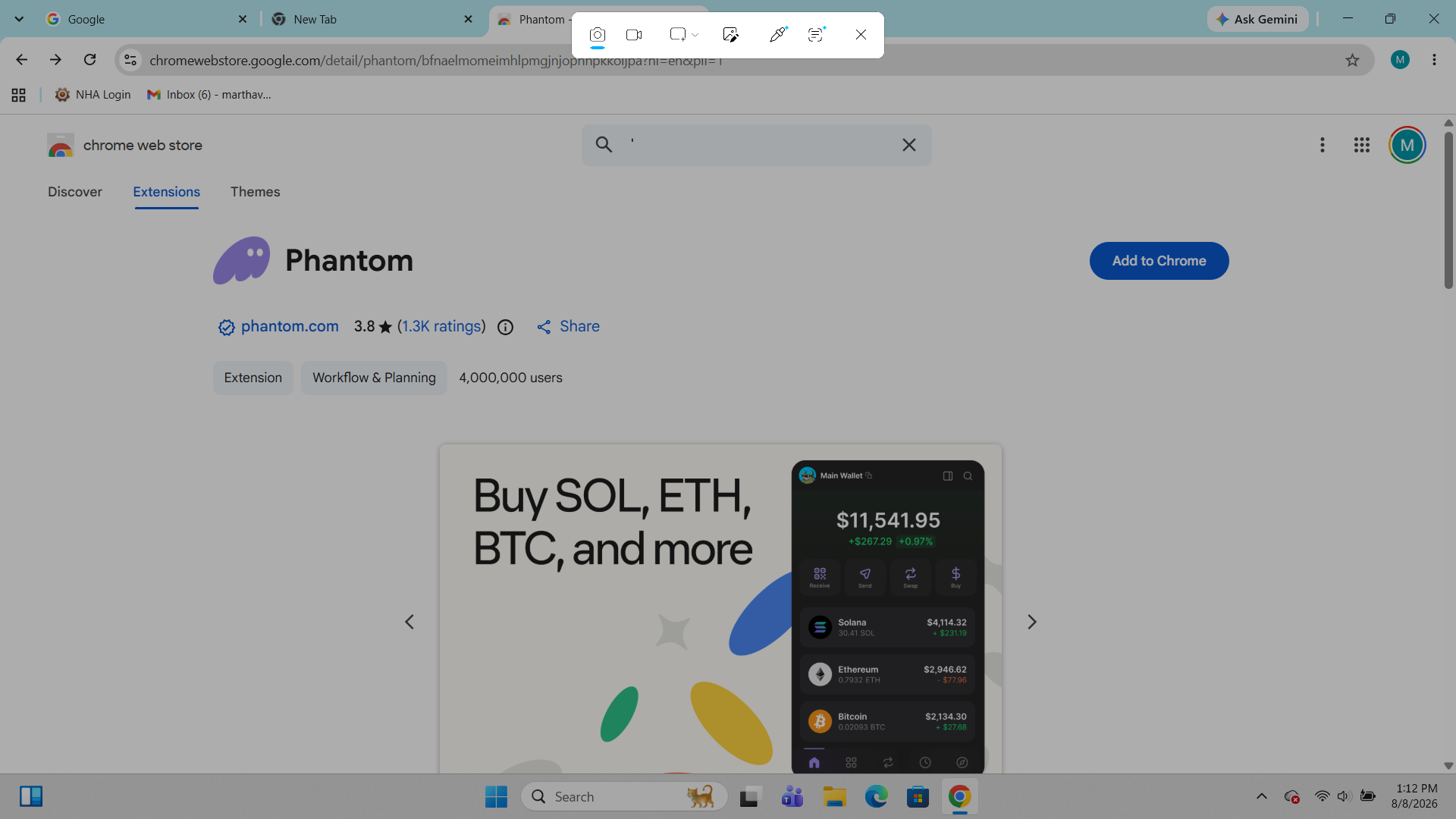
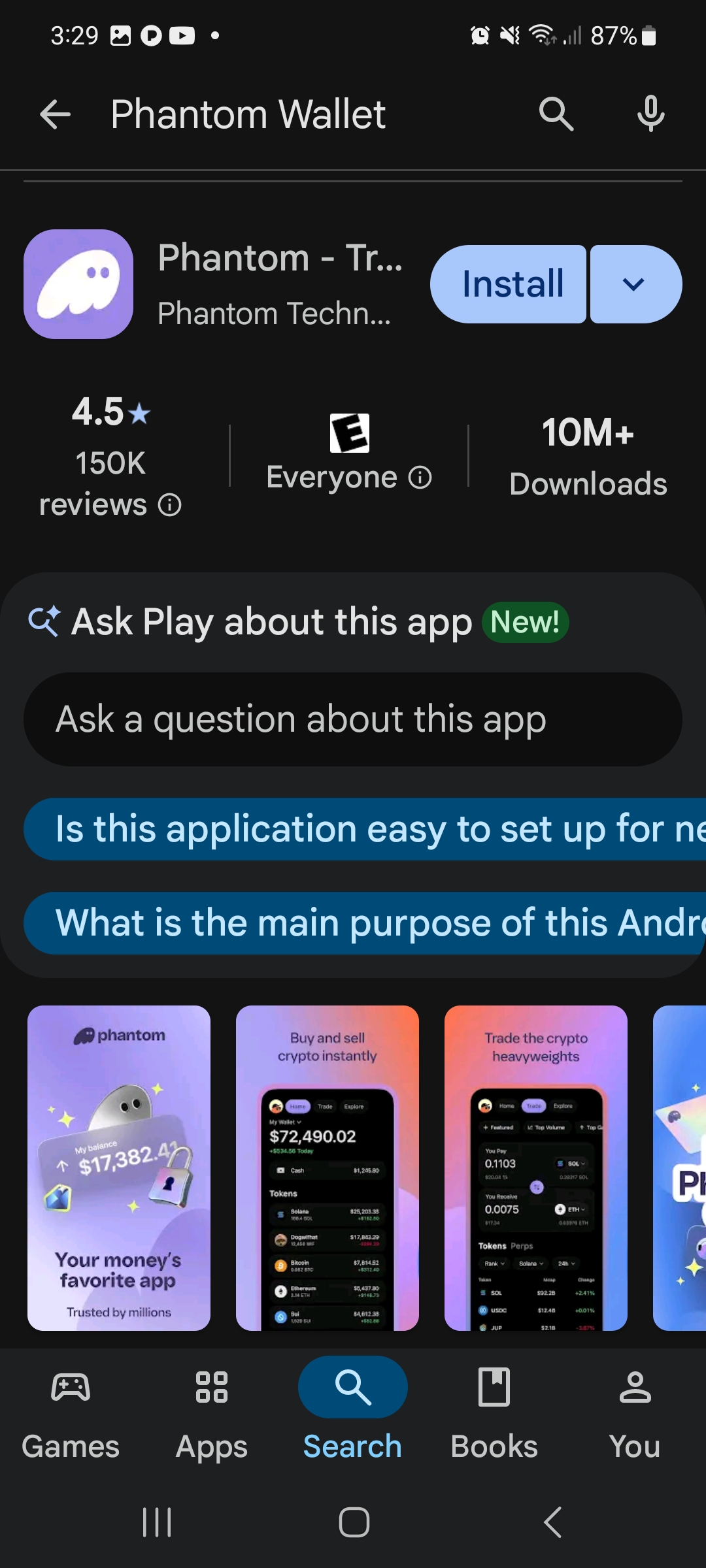
Download Phantom — the wallet I work with. It's a real multi-chain wallet (Solana, Bitcoin, Ethereum, EVM tokens and more), not a niche tool. That's why I trust it.
Leave this tab open — you'll come right back here after downloading.
Only ever link to Phantom's official domain/store listings — lookalike phishing sites are common.
We built and tested this on Chrome. If you try it on Brave, Edge, or Mac, we'd love to hear how it goes — good or bad. This is beta, and early testers helping us cover more ground is exactly how this gets built right. Jump into our Discord and tell us what you find: discord.gg/pFkvGUBEr
You've got two ways to set up your wallet — pick whichever's easier for you: 1) Set up on Mobile using your Gmail or Apple ID, or 2) set up on Desktop by creating a Recovery Phrase wallet. Either way, your wallet has a Recovery Phrase behind it.
If you sign in with Google or Apple instead, Phantom also gives you a PIN. Write that down too — lose both the PIN and your recovery phrase, and your wallet is gone for good, just like losing the phrase alone.
You'll see Phantom call this a "Recovery Phrase." Us OGs still call it a "Seed Phrase" — same thing, older lingo. I'll probably slip and say both.
Screens and button names may shift a little as Phantom updates — the video gives you the general feel, this page has the exact steps.
Want Snowy on both your phone and your computer? Take that Recovery Phrase — the list of words — and manually type it into your second device. Choose "Import a Recovery Phrase Wallet" and enter the words in the exact order. Now both wallets are the same wallet, just on two devices.
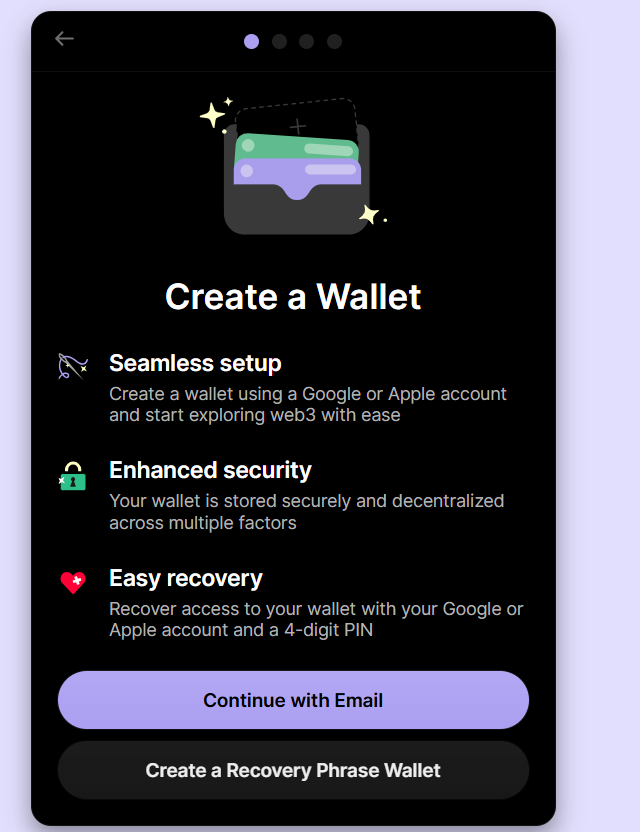
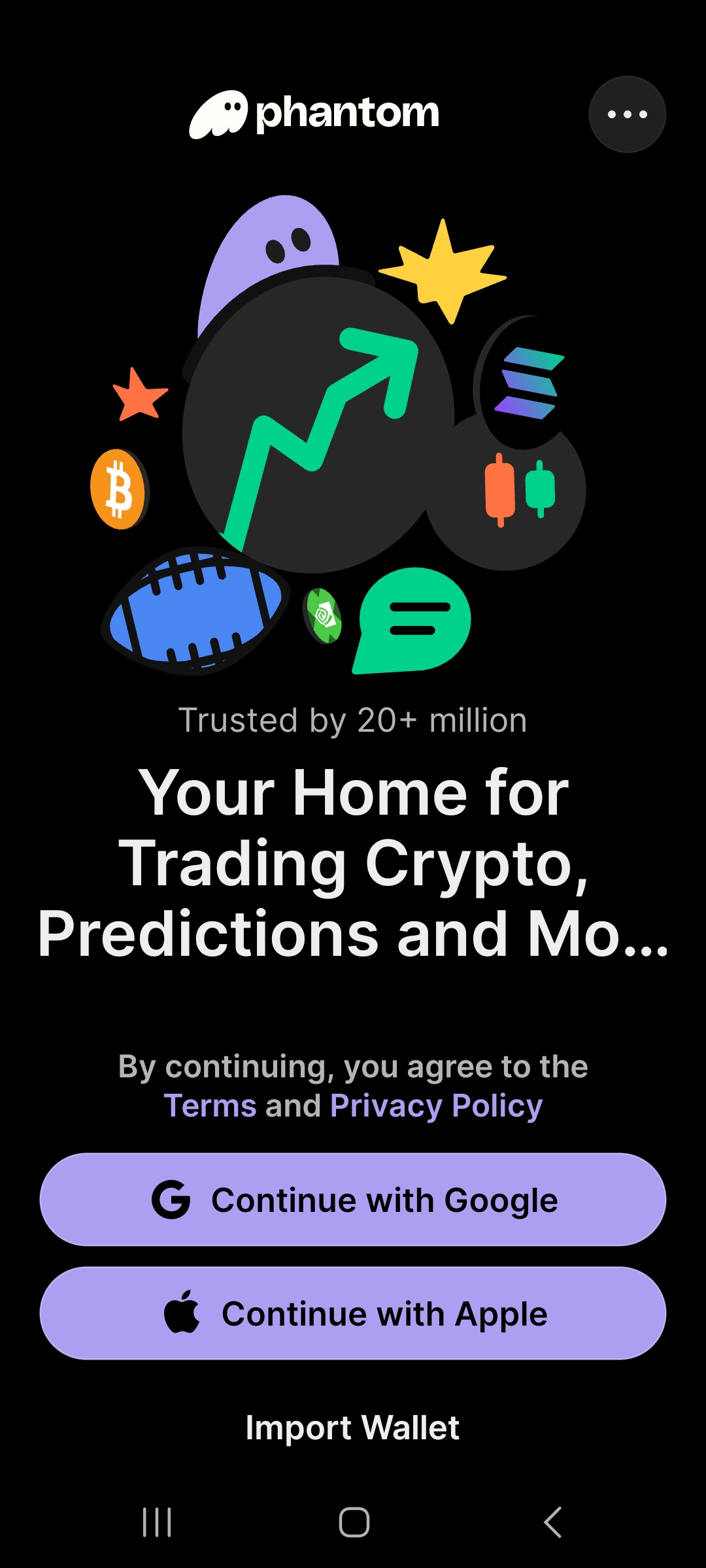
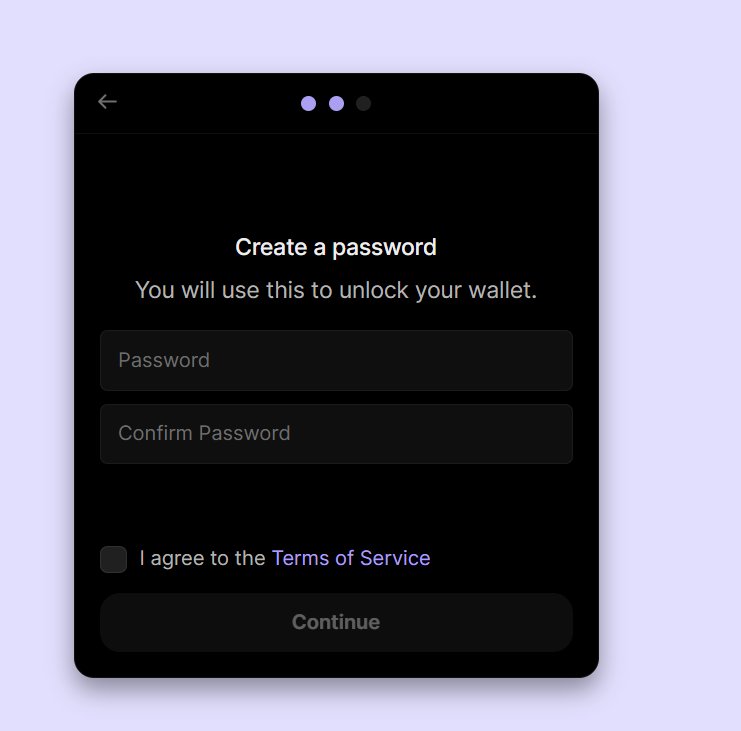
Phantom will show you a "secret recovery phrase" — a list of words. This is the ONE thing that matters most. Read this before you continue:
WRITE IT DOWN BY HAND, ON PAPER. Write down each word clearly, with its corresponding number next to it — the order matters. Never type it, screenshot it, save it anywhere digital, or send it to anyone — including me. Nobody legitimate will EVER ask you for it. Anyone who asks is trying to steal from you.
Keep that paper safe. You can restore your wallet on any new device with this phrase — but if you lose it, nobody, including Phantom, can recover it for you. That's what makes it yours alone.
Always keep a little SOL in your wallet — Solana's native token, used for network fees (usually pennies). I personally keep $5–10 of SOL on hand at all times.
One more thing: random tokens or NFTs sometimes show up uninvited. If you didn't buy it, don't click it — just leave it alone.
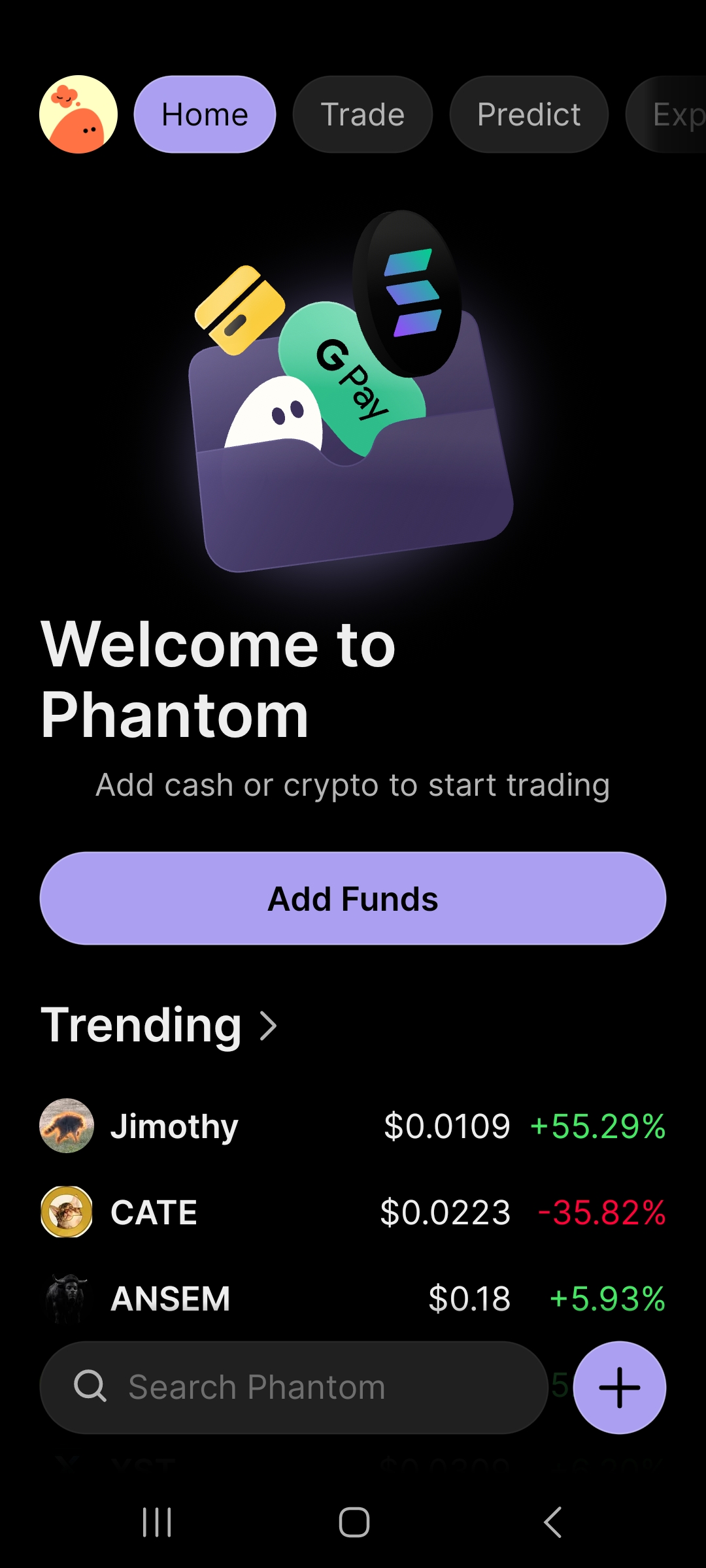
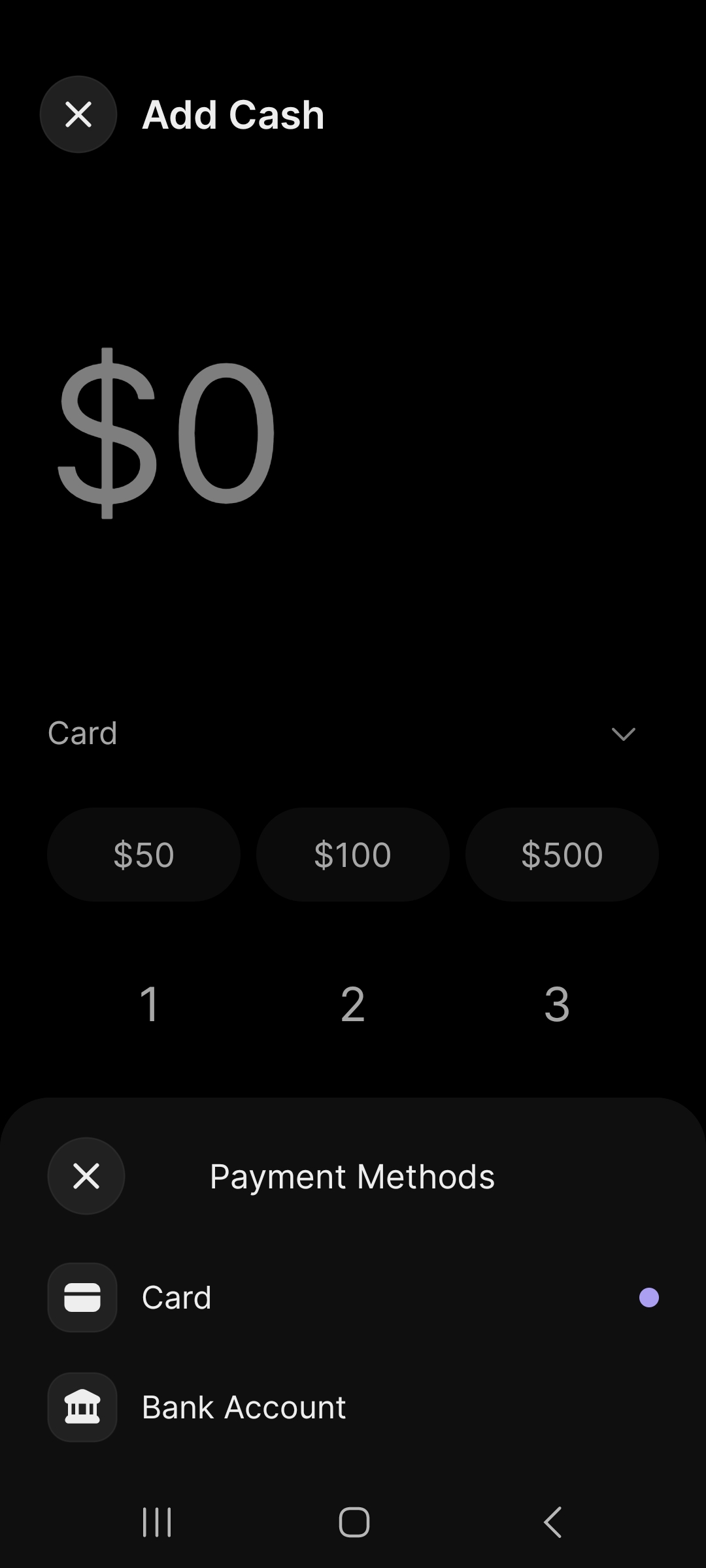
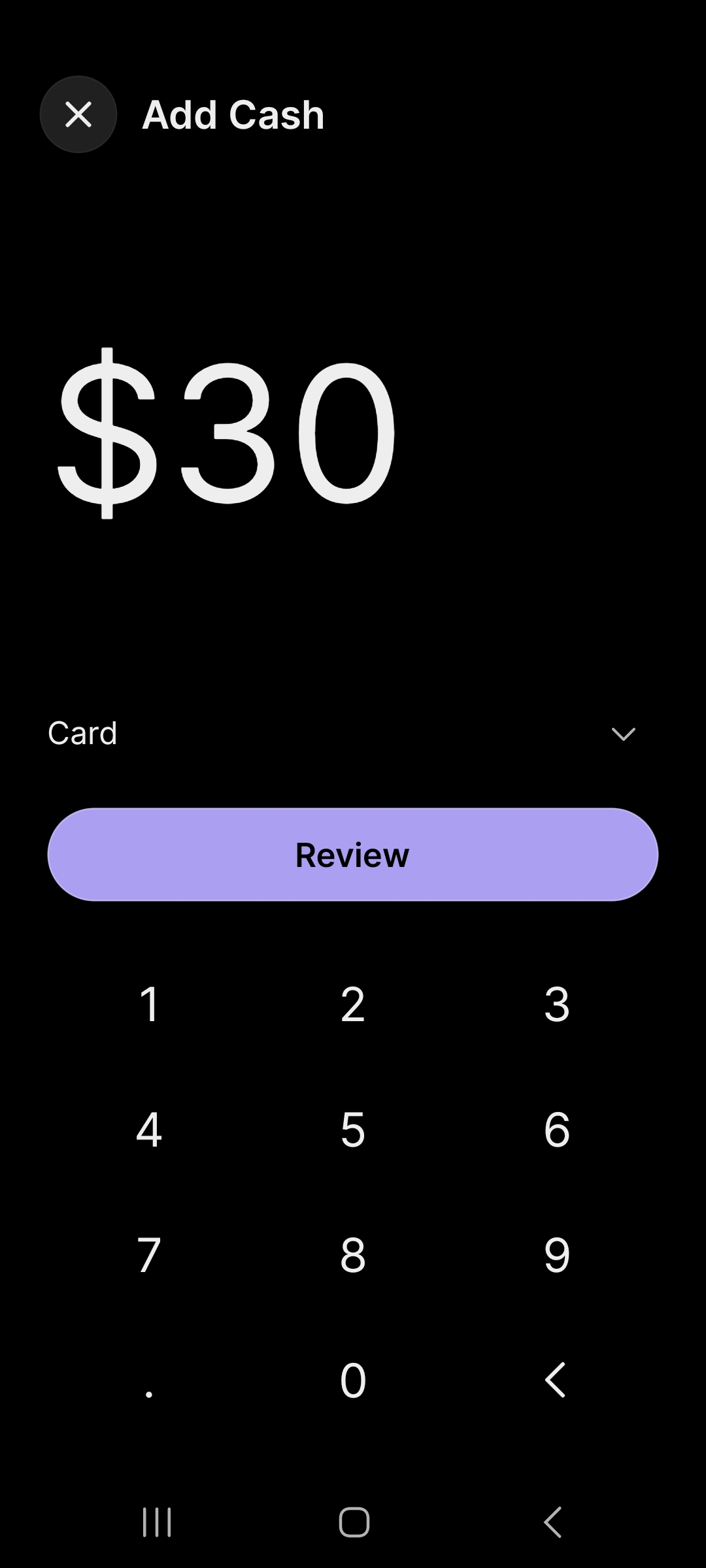
We're showing Mobile UI here, but Desktop is similar.
Phantom's built-in "Cash" adds funds by Card, Google Pay, or Bank Transfer. As we set up your wallet, we'll convert your dollars into Phantom Cash, then get you a little SOL and a little USDC. From there, you're ready to fly.
Card / Google Pay: instant, small fee
Bank Transfer: free, 1–3 days
Phantom → Cash → Add Cash → choose your method.
Once you have Phantom Cash, we'll swap some for SOL first, then some for USDC next.
1. Buy a little SOL — covers tiny network fees.
2. Buy a little USDC — either one also works to pay for your subscription.
Tap Buy → Cash as source → SOL or USDC as what you're receiving.
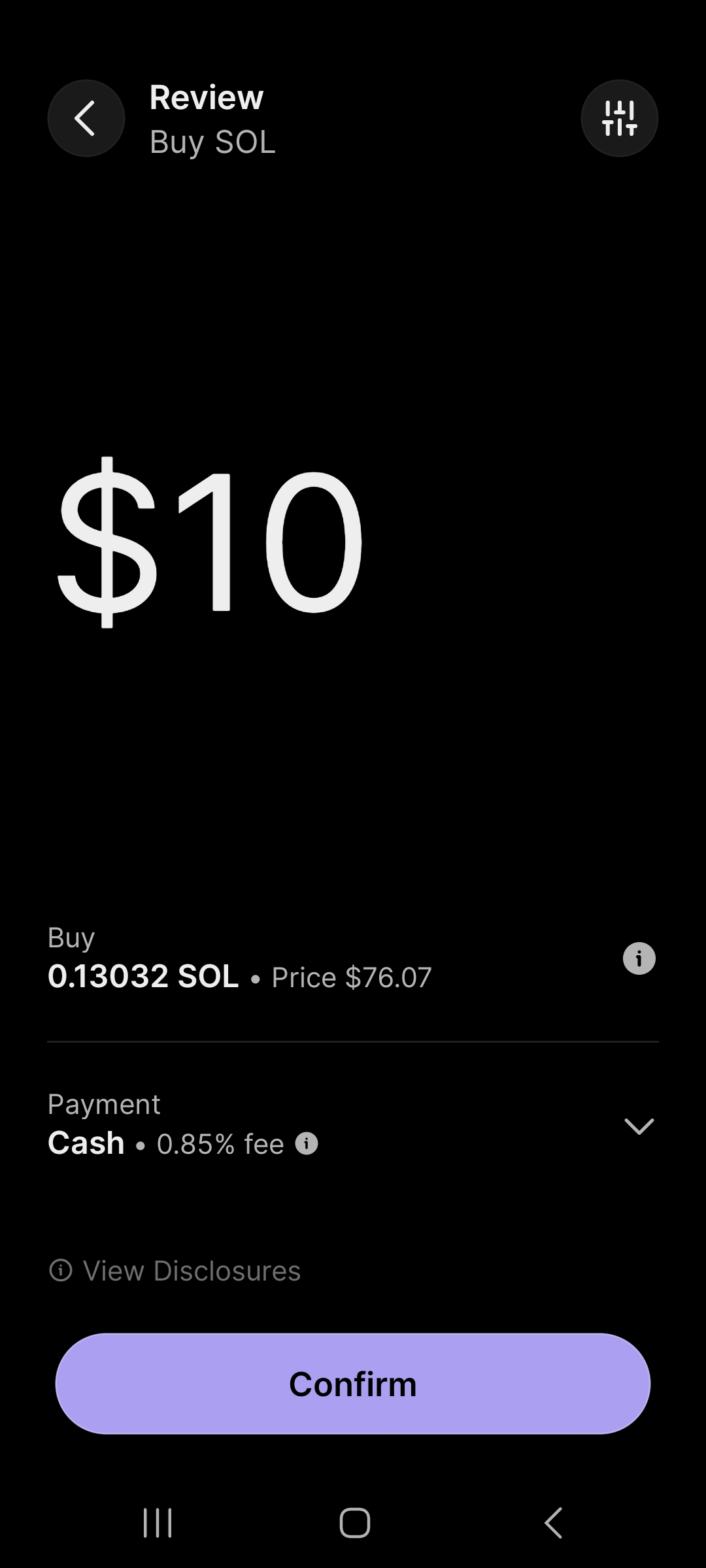
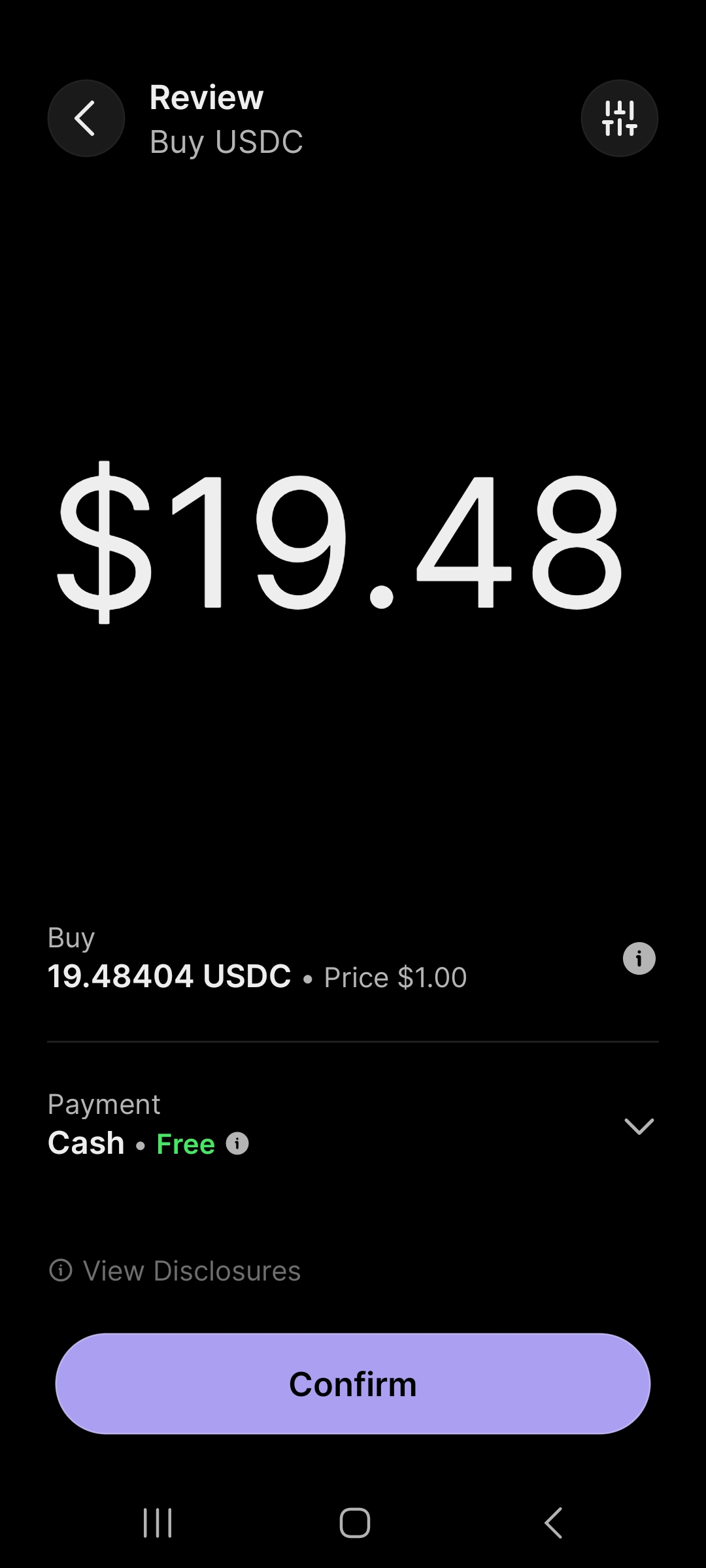
You can set up your subscription using SOL — Solana's native token — or USDC, the Solana network's dollar-pegged stablecoin.
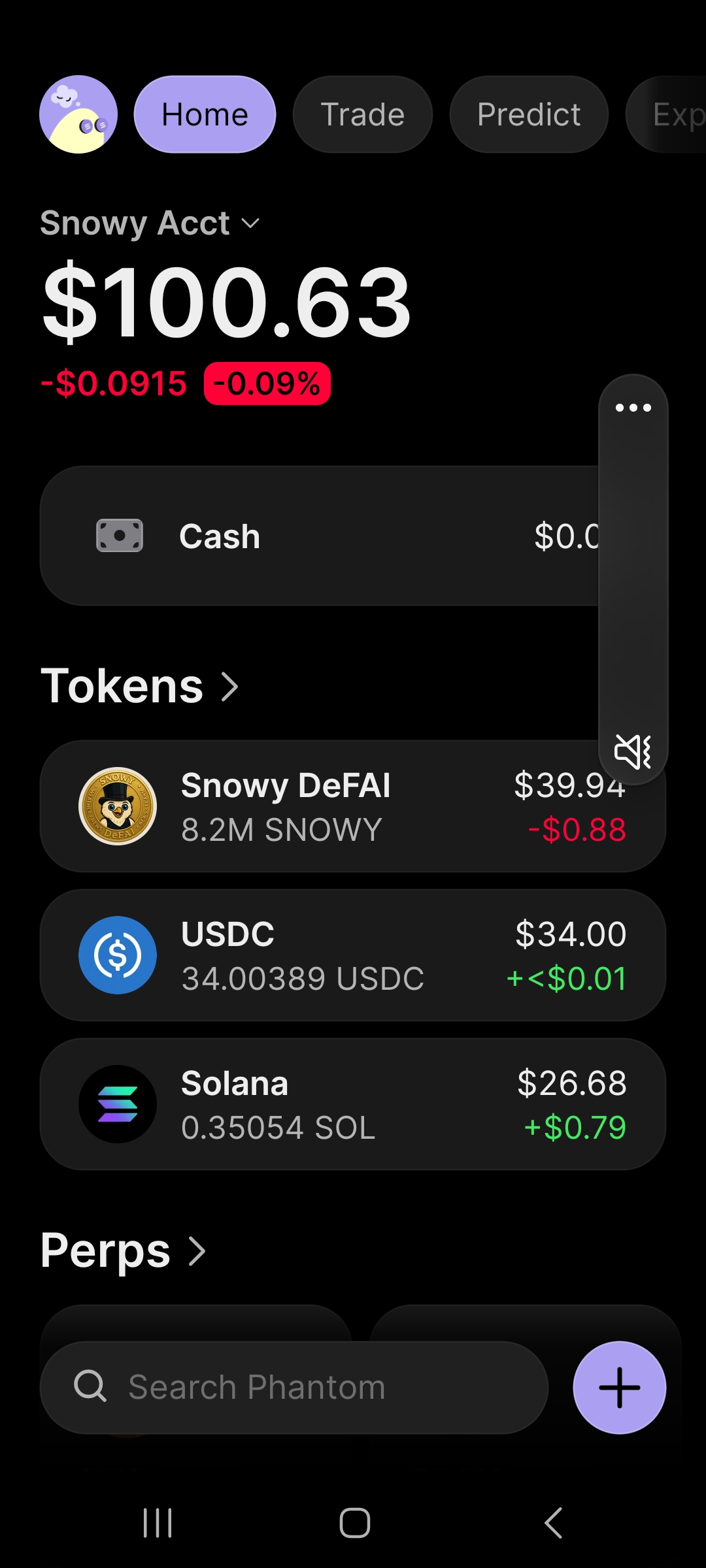
Review, open your wallet and you should have a little CASH, a little SOL in decimals, and some USDC, if not review the steps above before clicking FINISHED below.
That's it!! You now have a Real wallet with Real funds. KEEP YOUR SEED PHRASE SAFE! Click FINISHED below to fly back home, set up your subscription, finish the install, and get your own Snowy. Let's Fly with Snowy DeFAI!
While in Phantom Wallet setup, please don't use your browser's back arrow — tap below to continue.